Quick answer
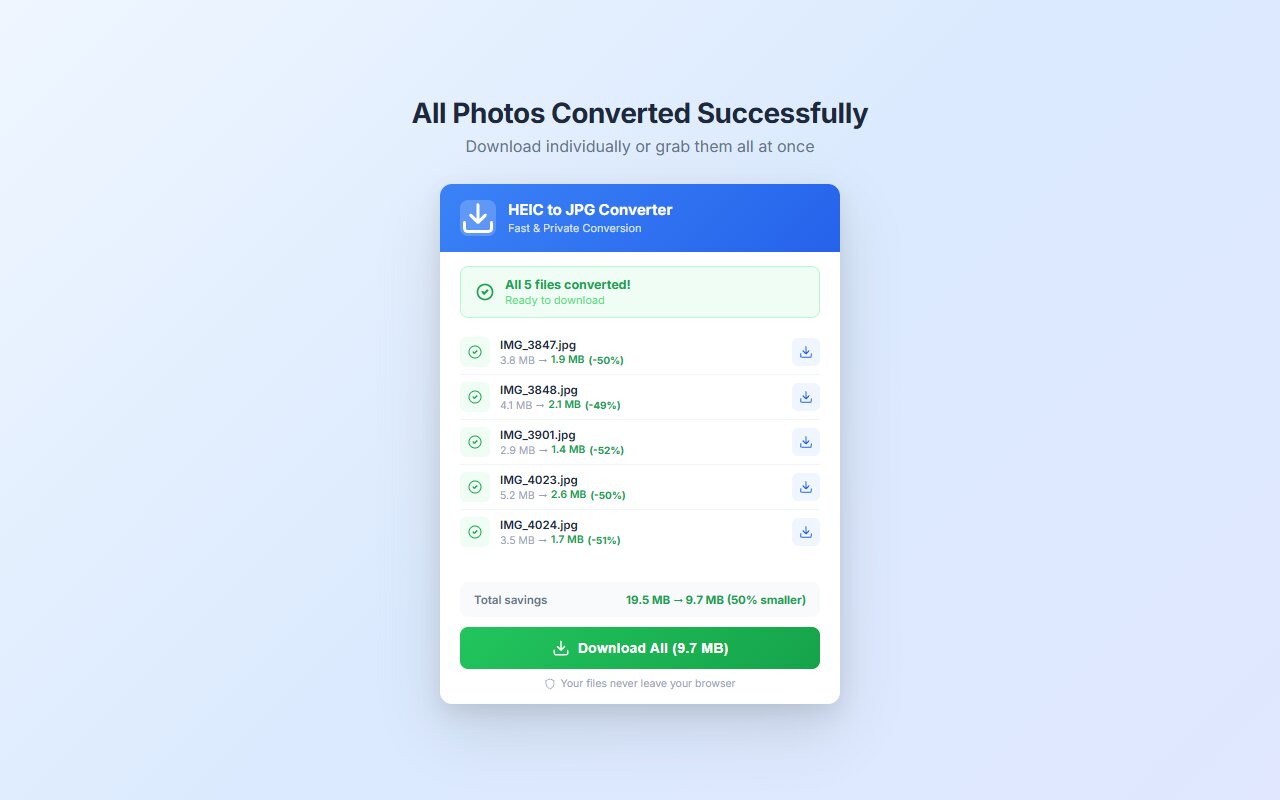
HEIC to JPG Converter preserves EXIF data by default. Camera model, ISO, aperture, GPS location, and timestamp all transfer to the JPG output. No manual configuration needed.
You convert HEIC to JPG and realize the GPS location tag is gone, the camera model is missing from properties. Not all converters preserve metadata. This guide shows which tools keep EXIF intact.
What EXIF data is and why it matters
EXIF (Exchangeable Image File Format) is embedded metadata in every photo:
- Camera model: iPhone 14 Pro, Samsung Galaxy, etc.
- Exposure settings: ISO, f-stop, shutter speed.
- GPS location: Latitude/longitude where photo was taken.
- Timestamp: Exact date and time.
- Lens info: Focal length, lens model.
Preserving EXIF is critical for photographers, insurance claims, legal documentation, and travel photos.
HEIC to JPG Converter: preserves EXIF
The extension preserves all EXIF data by default. Drop HEIC, adjust quality if desired (EXIF unaffected), click Convert, download JPG. No settings to toggle.
Other tools and EXIF
- Cloudconvert: Preserves by default.
- iLoveIMG: Removes EXIF (privacy).
- Automator (Mac): Removes EXIF.
- PowerShell + ImageMagick: Remove by default (use +preserve flag to keep).
How to verify EXIF was preserved
Right-click JPG > Properties (Windows) or Get Info (Mac). Look for Camera Model, ISO, GPS coordinates. Or upload to exif.regex.info (web tool) to see all metadata.
At-a-glance comparison
| Tool | Preserves EXIF | Removes for privacy | Setting available |
|---|---|---|---|
| HEIC to JPG Converter | Yes | No | No (always on) |
| Cloudconvert | Yes | No | No (always on) |
| iLoveIMG | No | Yes (privacy) | No (always strips) |
| Automator (Mac) | No | Yes (rebuilds) | No |