Quick answer
Google Drive accepts HEIC uploads: works on Mac and iPhone. Windows and Android: Google Drive shows no preview. Convert HEIC to JPG first for consistent previews across all devices.
You upload a HEIC photo to Google Drive on your iPhone. Perfect. You open Google Drive on Windows. The thumbnail is blank or the file shows as unknown type. Google Drive stores HEIC but does not preview it consistently.
What Google Drive does with HEIC
Google Drive behavior on upload:
- Mac / iPhone: Full support. Shows thumbnail, opens in Google Photos integration.
- Android: Accepts upload, no preview.
- Windows web: Accepts upload, no preview (blank thumbnail).
- Google Photos: Auto-detects HEIC, stores natively, shows in web interface with full preview.
HEIC is accepted but not consistently previewed.
Why Google Drive doesn't preview HEIC on Windows
Google does not include the HEIC codec in their Windows web interface to avoid licensing fees. Simple cost-benefit: HEIC adoption is still <20%, not worth licensing the codec.
30-second fix: convert before uploading
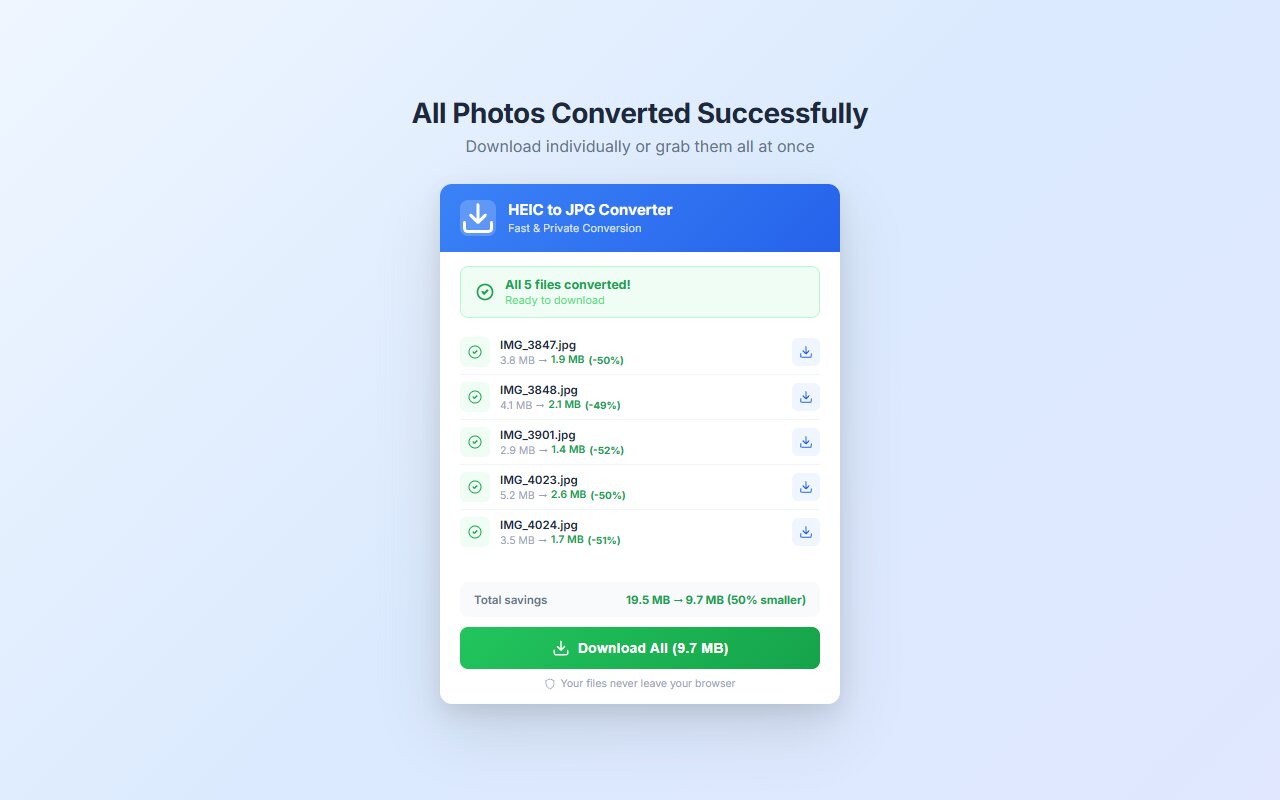
- Use HEIC to JPG Converter (extension) or Cloudconvert (web).
- Convert HEIC to JPG.
- Upload JPG to Google Drive instead.
- Thumbnail shows on all devices.
JPG previews universally in Google Drive.
Better alternative: use Google Photos instead
If you are uploading photos (not documents), use Google Photos instead of Google Drive:
- Google Photos accepts HEIC, shows full preview.
- Shared albums work seamlessly.
- Search by date, location, subject works in Google Photos (Drive does not).
- Free tier: 15 GB (shared with Gmail, Drive).
Google Photos is designed for photos. Drive is designed for documents.
At-a-glance comparison
| Upload location | Accepts HEIC | Shows preview (Windows) | Shows preview (Mac) | Recommended |
|---|---|---|---|---|
| Google Drive | Yes | No | Yes | Convert to JPG |
| Google Photos | Yes | Yes | Yes | Native support (best) |
| OneDrive | Yes | No | Yes | Convert to JPG |
| Dropbox | Yes | No | Yes | Convert to JPG |