Quick Answer
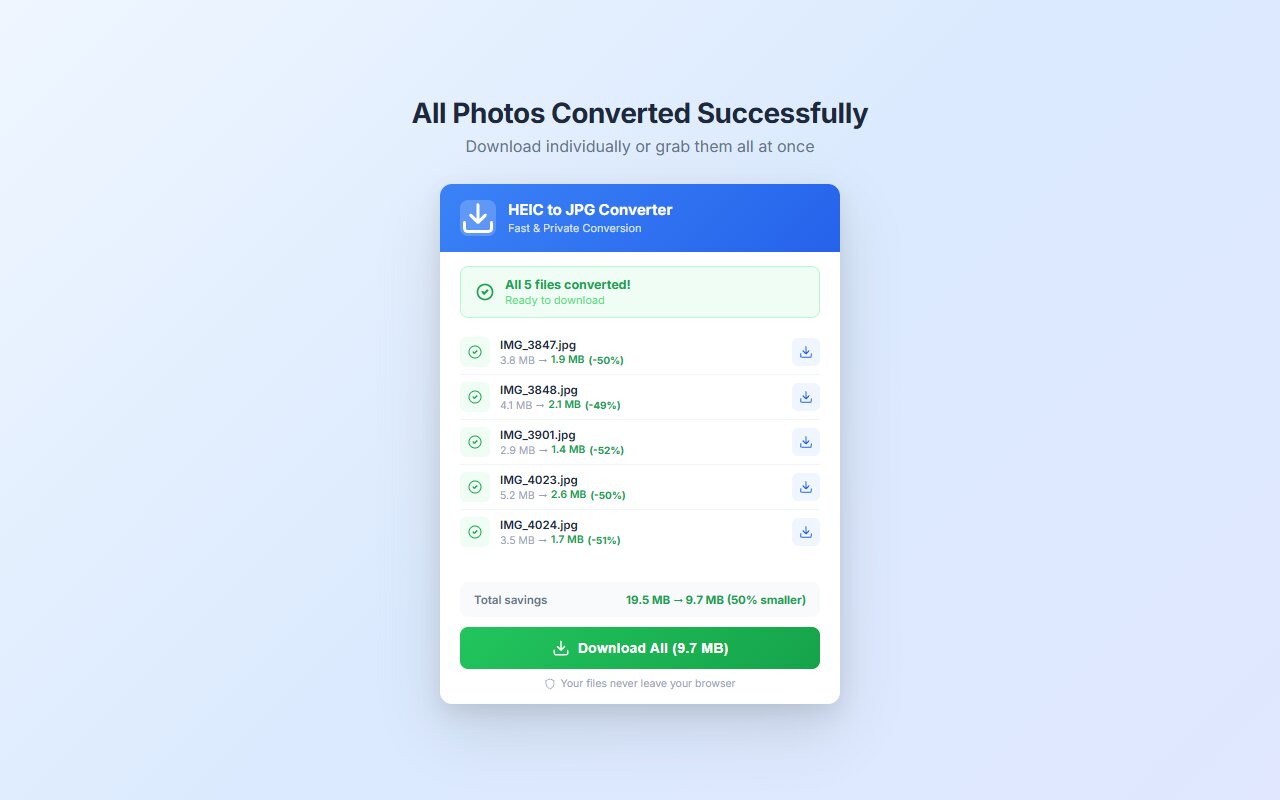
Apple switched iPhones to HEIC (High Efficiency Image Container) in iOS 11 (2017) because HEIC produces photos that are roughly 50% smaller than JPG at the same visual quality, using the advanced HEVC compression codec. This doubles the number of photos you can store on your iPhone. When compatibility is needed, use the HEIC to JPG Converter extension to convert instantly.
If you've ever transferred iPhone photos to a Windows PC only to find no program can open them, you've experienced the HEIC compatibility gap. Apple made a deliberate decision to switch from the universally supported JPG format to HEIC — and they did it for compelling technical reasons, even knowing it would cause friction for many users.
Understanding why helps you make informed decisions about how to manage your photos.
The Storage Problem HEIC Solves
By 2016, smartphone cameras had reached a point where photo quality expectations far outpaced storage capacity. The iPhone 7 Plus introduced a 12-megapixel dual-camera system capable of capturing detailed, high-quality images — but JPG files at that resolution occupied 3–5 MB each. A 32GB iPhone could store around 8,000 JPG photos. Reasonable, but tight for serious photographers or people who shoot a lot of video bursts and portraits.
Apple needed a compression technology that could cut file sizes dramatically without visually degrading photos. HEIC, combined with the HEVC (H.265) codec, was the answer. The same image saved as HEIC occupies roughly half the space of a JPG at equivalent visual quality.
On a 128GB iPhone with 1,000 photos, switching from JPG to HEIC saves roughly 500MB–1GB. Over a year of shooting, that difference can mean thousands of additional photos stored on-device before any cloud storage is needed.
The Technical Reason: HEVC vs DCT
JPG uses a compression algorithm called Discrete Cosine Transform (DCT), developed in the late 1980s and standardized in 1992. It divides images into fixed 8×8 pixel blocks and applies frequency-domain compression to each block. The algorithm was revolutionary in its day but shows its age with modern high-resolution sensors.
HEIC uses the HEVC (High Efficiency Video Coding, also known as H.265) codec adapted for still images. HEVC was developed specifically to handle the demands of 4K video, and it uses far more sophisticated compression techniques:
- Variable block sizes — from 4×4 to 64×64 pixels, allocated based on image complexity
- Advanced intra prediction — uses surrounding pixels to more accurately predict block content
- Transform skip mode — skips DCT entirely for areas where it's inefficient
- Better handling of gradients — smooth areas (skies, skin) compress with less banding
The result: HEVC encodes the same visual content using about half the data that JPEG requires. Apple's implementation in the iPhone's ISP (Image Signal Processor) is hardware-accelerated, so encoding happens at full speed without draining the battery.
What HEIC Offers Beyond Compression
Smaller file sizes were the primary motivation, but HEIC offers several other capabilities that JPG cannot match:
HDR and Wide Color Support
Modern iPhones capture in Display P3 wide color gamut and can store HDR (High Dynamic Range) data. Standard JPG is limited to 8-bit sRGB — it cannot represent the full dynamic range of modern iPhone sensors. HEIC supports 10-bit and 12-bit color depth, preserving the full tonal richness of HDR captures.
Live Photos Storage
iPhone's Live Photos feature captures a brief video clip along with each still photo. HEIC's container format (HEIF) is designed to store multiple images and video clips in a single file — Live Photos store the still and the video together smooth$1. JPG containers cannot natively do this.
Portrait Mode Depth Data
iPhone Portrait mode captures depth information for every pixel in the scene. This depth map enables the software bokeh effect, but it's also stored in the HEIC file for potential future use in editing. HEIF containers can store auxiliary images (like depth maps) alongside the main image in a single file.
Burst Mode Efficiency
When you hold the shutter button, iPhone captures dozens of frames per second. HEIF can store all burst frames in a single file with shared data between frames (similar to video compression), reducing the total size of burst sequences compared to storing each frame as a separate JPG.
Need to Share HEIC Photos?
Convert to JPG instantly in Chrome. No uploads, works on any Windows or Mac computer.
Convert HEIC to JPG FreeWhy the Compatibility Problem Exists
If HEIC is so good, why doesn't everything support it? The answer comes down to patents and timing.
The HEVC codec is a patented technology owned by a consortium of companies (MPEG LA, HEVC Advance, and Velos Media). Any software or hardware that decodes HEVC must pay licensing fees. This creates barriers to adoption:
- Microsoft doesn't bundle HEVC in Windows by default (it requires a paid Store purchase or a separate free codec)
- Google Chrome and Mozilla Firefox haven't added HEIC support because of licensing complexity and the effort required
- Web services (Instagram, Gmail, Dropbox) are slowly adding HEIC upload support but most still work best with JPG
- Android has inconsistent HEIC support — some manufacturers implement it, others don't
Apple's position is different: as a hardware manufacturer that pays MPEG LA licensing fees for every iPhone sold, HEIC support is already included in iOS and macOS. For Apple, HEIC "just works" within the Apple ecosystem.
Apple's Compatibility Strategy
Apple is aware of the compatibility friction and has built several auto-conversion features to reduce it:
- Transfer to Mac or PC (Automatic) — Settings → Photos → Transfer to Mac or PC → Automatic converts HEIC to JPG during USB transfer
- AirDrop to non-Apple devices — converts to JPG automatically
- Most social media uploads — when you share from Photos to Instagram or Facebook, iOS converts to JPG before uploading
- Most Compatible camera mode — Settings → Camera → Formats → Most Compatible saves as JPG directly
When You Still Need Manual Conversion
Despite these auto-conversions, there are many scenarios where HEIC files end up on non-Apple devices without being converted:
- Copying via USB with "Keep Originals" enabled
- Emailing HEIC files from an iPhone
- Downloading from iCloud.com on Windows
- Transferring via third-party apps
- Sharing HEIC files through cloud services like Dropbox or OneDrive
In these cases, a dedicated HEIC converter is the fastest solution. The HEIC to JPG Converter Chrome extension handles conversion in your browser without uploads or software installations.
HEIC to JPG — Fast, Private, Free
Convert HEIC files right in your Chrome browser. Your photos stay on your device the entire time.
Add to Chrome